Affichage des articles dont le libellé est Operation Manager 2007. Afficher tous les articles

vendredi 18 mars 2011

Need to change the root certificate validity period

You can change the validity period in the \Windows\CAPolicy.inf
file on the root CA and then renew the root CA certificate. The renewed
certificate will then have the desired validity period. You'll still have
to distribute this new certificate otherwise all of your affiliated
customers will still have a copy of the old certificate with the old
validity period.

If \Windows\CAPolicy.inf doesn't exist, you can create them with this format:

[certsrv_server]
RenewalValidityPeriodUnits=5
RenewalValidityPeriod=years

vendredi 17 décembre 2010

Fix for SCOM DNS 2008 External Resolution Monitor in Constant Error State

If you're using System Center Operations Manager 2007 (SCOM) you may notice that your Windows Server 2008 DNS servers are in a chronic critical state, due to the DNS 2008 External Resolution Monitor. This monitor is in the Windows Server DNS 2000/2003/2008 Management Pack for Operations Manager 2007.

The DNS 2008 External Resolution Monitor performs an NSLOOKUP query for a host (NS) record at www.microsoft.com to verify that external resolution is functioning properly. Further details can be read here.

Assuming that DNS forwarding and name resolution is functioning properly, you can correct this false error by creating an override for the Query Type. Override the default value (ns) for the DNS Server class with the override value of A, as shown below:


This will cause the monitor to perform lookups for A records, which should succeed. If the monitor still fails, you may indeed have a DNS name resolution problem.

jeudi 16 décembre 2010

Root Management Server Unavailable

Alert: Root Management Server Unavailable.

Source: SCOM01.DOMAIN.LOCAL

Path: SCOM01.DOMAIN.LOCAL

Last modified by: System

Last modified time: 9/2/2008 1:18:19 AM

Alert description: The root management server (Healthservice) has stopped heartbeating soon after 9/2/2008 1:17:18 AM. This adversely affects all availability calculation for the entire management group.

After the upgrade to SP1, our SCOM server started to give the above alert every minute or so. After much research and a call to Microsoft to confirm. This is in fact a bug, Microsoft's explaination is as follows "As the RMS gets busy with hundreds of client to monitor, the health service will be slow to response which causes it to skip heartbeats. This in turn trigger the alerts." This can get really annoying if someone is subscribed to email/IM notification. Here is the work around:

1. Regedt32
2. Locate HKEY_LOCAL_MACHINE -> SOFTWARE -> MICROSOFT -> MICROSOFT OPERATIONS MANANGER -> 3.0 -> SDK SERVICE
3. Right click - New Key
4. Enter "RHS Watcher"
5. Right click "RHS Watcher" -> New -> DWORD
6. Enter "MinutesToWaitBeforeAlerting"
7. Double-click on "MinutesToWaitBeforeAlerting" and enter value of 5
8. Close regdt32 and open Services.msc
9. Restart OpsMgr Config Service, OpsMgr Health Service, and OpsMgr Health Service

This should do the trick, basically what you just did is tell delaying the SDK Service from sending out alerts for 5 minutes, at which time it should have received the next heartbeat.

mercredi 8 décembre 2010

Which hotfixes should I apply?

Common OpsMgr 2007 Post-R2 hotfixes:

This list ABSOLUTELY assumes you are at OpsMgr R2-RTM level as a base (6.1.7221.0).

MP Update

Microsoft.SystemCenter.2007.mp
6.1.7695.0

Microsoft.SystemCenter.OperationsManager.2007.mp
6.1.7695.0

Microsoft.SystemCenter.OperationsManager.AM.DR.2007.mp
6.1.7695.0

Microsoft.SystemCenter.OperationsManager.Reports.2007.mp
6.1.7695.0

ODR.mp
6.1.7695.0

New reports, knowledge, monitors, rules. See MP Guide.
MP import only
2251525

R2 CU3
OpsMgr 2007 R2 CU3 Cumulative Update

Multiple. See KB Article. Note this is a DLL update, MP updates, and SQL scripts update.
Many updates. See KB article for CU3, CU2, and CU1 for full list. RMS
MS
GW
Agents
AuditCollector
Console
WebConsole
MP Import
TSQL Script
971233 none The console shows customized subscriptions SMTP{GUID} after you upgrade to OpsMgr R2 from OpsMgr SP1 Operations Database (TSQL only)

Common OpsMgr 2007 Post-SP1 hotfixes:

This list ABSOLUTELY assumes you are at OpsMgr SP1 level as a base (6.0.6278.0). These DO NOT APPLY these to OpsMgr R2.

MP Update

Microsoft.SystemCenter.2007.mp 6.0.6709.0

Microsoft.SystemCenter. OperationsManager.2007.mp 6.0.6709.0

Microsoft.SystemCenter. OperationsManager.AM.DR.2007.mp 6.0.6709.0

Agent restarts, many other critical enhancements Management Pack Import only (Import via console once extracted)
2028594 SP1 Cumulative Update 1. Multiple files. See KB article Many. See KB article RMS
MS
GW
Agents
Consoles
MP Import
SQL Scripts (OpsDB and DW)
971541 SP1 Rollup hotfix. Multiple files. See KB article Many. See KB article RMS
MS
GW
Reporting
Agents
Console
MP Import
972881 Managedentitychange.sp.sql The changes to the display name of a managed entity are not synchronized in the Operations Manager Data Warehouse database Data Warehouse Database (T-SQL only)
954643 Managementpackinstall.sp.sql Event ID 31569 is logged after you install a management pack that includes reports on a System Center Operations Manager 2007 SP1 server Data Warehouse Database (T-SQL only)
974254 Autotablecreation.sql
Viewcreatesprocs.sql
1. Unable to create large number of groups.

2. Import fails when importing an MP or when creating a MP from a template
Operations Database (TSQL only)

jeudi 25 novembre 2010

Enable SQL 2005 broker service for SCOM 2007

SCOM 2007 uses SQL2005 broker service to perform discoveries, so before you use the Discovery Wizard to install agents, you need to set the Enable_Broker value.

To set ENABLE_BROKER

1. Open SQL Server Management Studio.

2. In the Connect to Server dialog box, select the appropriate values in the Server type list, in the Server name list, in the Authentication list, and then click Connect.

3. Click New Query.

4. In the query window, enter the following query:

ALTER DATABASE OperationsManager SET SINGLE_USER WITH ROLLBACK IMMEDIATE

5. Click Execute.

6. Enter the following query:

ALTER DATABASE OperationsManager SET ENABLE_BROKER

7. Click Execute.

8. Close SQL Server Management Studio.

Note

Closing SQL Server Management Studio closes the connection to the database in single user mode. Depending on your configuration, you may have to manually kill any process that is connected to the database before completing the ALTER query below.

9. Open SQL Server Management Studio.

10. In the Connect to Server dialog box, select the appropriate values in the Server type list, in the Server name list, in the Authentication list, and then click Connect.

11. Click New Query.

12. In the query window, enter the following query:

ALTER DATABASE OperationsManager SET MULTI_USER

13. Click Execute.

You can verify the setting for ENABLE_BROKER is set to 1 by using this SQL query: SELECT is_broker_enabled FROM sys.databases WHERE name='OperationsManager'.

I was following the above instruction but when I try “ALTER DATABASE OperationsManager SET MULTI_USER”

samedi 30 octobre 2010

OpsMgr 2007: Agents stuck in Pending Management with Event ID 21016

When you deploy a System Center Operations Manager 2007 agent using the Discovery Wizard, the installation completes successfully but the computer remains in the Pending Management view under "Type: Installation in Progress." When you right-click the computer in Pending Management, the only command available is Reject. The Approve and Install Agent commands are unavailable. If you reject the computer in Pending Management, it reappears in the same state the next time you start the OpsMgr Health Service on the agent.

Additionally, each time OpsMgr Health Service starts on the agent, it logs an event in the Operations Manager log that is similar to the following:

Event Type: Error
Event Source: OpsMgr Connector
Event Category: None
Event ID: 21016
Date:
Time:
User: N/A
Computer: AGENT
Description: OpsMgr was unable to set up a communications channel to OPSMGRMS.momv3.local and there are no failover hosts. Communication will resume when OPSMGRMS.momv3.local is both available and allows communication from this computer.

In this scenario, if you install an agent manually, the manually installed agent logs the OpsMgr Connector 21016 event, but never appears in the Operations Console. This occurs even when you have enabled the option to review or automatically approve manually installed agents.

Cause:

The "Installation in Progress" pending management type indicates that the agent was installed, but has never successfully connected to the management server. In this state, the Approve command is unavailable by design (because it's a push install) and the only options are to reject the agent or fix the communication problem. General connectivity problems can cause this, however the most likely cause is a Kerberos error.

These symptoms can occur when the ServicePrincipalName (SPN) for the management server's HealthService is not registered or is not registered correctly (e.g. there's a duplicate SPN). In this scenario, the agent may log the following two events immediately prior to the OpsMgr Connector 21016 event:

Event Type: Error
Event Source: OpsMgr Connector
Event Category: None
Event ID: 20057
Date:
Time:
User: N/A
Computer: AGENT
Description: Failed to initialize security context for target MSOMHSvc/OPSMGRMS.momv3.local The error returned is 0x80090303(The specified target is unknown or unreachable). This error can apply to either the Kerberos or the SChannel package.

Event Type: Error
Event Source: OpsMgr Connector
Event Category: None
Event ID: 21001
Date:
Time:
User: N/A
Computer: AGENT
Description: The OpsMgr Connector could not connect to MSOMHSvc/OPSMGRMS.momv3.local because mutual authentication failed. Verify the SPN is properly registered on the server and that, if the server is in a separate domain, there is a full-trust relationship between the two domains.

If you enable Kerberos event logging on the agent by using the steps in KB 262177, the agent logs events similar to the following in the System log:

Event Type: Error
Event Source: Kerberos
Event Category: None
Event ID: 3
Date:
Time:
User: N/A
Computer: AGENT
Description:
A Kerberos Error Message was received:
on logon session
Client Time:
Server Time:
Error Code: 0x7 KDC_ERR_S_PRINCIPAL_UNKNOWN
Extended Error:
Client Realm:
Client Name:
Server Realm: MOMV3.LOCAL
Server Name: MSOMHSvc/opsmgrms.momv3.local
Target Name: MSOMHSvc/opsmgrms.momv3.local@MOMV3.LOCAL
Error Text:
File: 9
Line: ae0
Error Data is in record data.

A network trace shows the same 0x7 KDC_ERR_S_PRINCIPAL_UNKNOWN response received by the agent computer from the KDC.

These symptoms indicate SPN registration issues for the management server's HealthService. To check SPN registration, use setspn.exe from the Windows Server 2003 Support Tools. A copy of this tool is also available for download at the following URL:
http://www.microsoft.com/downloads/details.aspx?FamilyID=5fd831fd-ab77-46a3-9cfe-ff01d29e5c46&DisplayLang=en

To list SPNs for a computer or user account, use the following syntax:

setspn -L computername
-or-
setspn -L username

If the management server's OpsMgr Health Service logon account is Local System, its HealthService SPNs should be registered with the computer account in AD. If the management server's OpsMgr Health Service logon account is a user (not common), its HealthService SPNs should be registered with the user account. Be aware that the OpsMgr Health Service logon account may be different from the management server's Action Account. To see the logon account, open the Services MMC snap-in, double-click OpsMgr Health Service and click the Log On tab.

The HealthService SPNs should be as follow:

MSOMHSvc/FQDN
MSOMHSvc/COMPUTERNAME

Example setspn -L output
=======================================================================

Using Local System for the OpsMgr Health Service logon account:

Registered ServicePrincipalNames for CN=OPSMGRMS,CN=Computers,DC=momv3,DC=local:

MSOMHSvc/OPSMGRMS
MSOMHSvc/OPSMGRMS.momv3.local
HOST/OPSMGRMS
HOST/OPSMGRMS.momv3.localset

Using a domain user as the OpsMgr Health Service logon account for three different management servers:

Registered ServicePrincipalNames for CN=hservice_acct,CN=Users,DC=momv3,DC=local:
MSOMHSvc/OPSMGRMS1
MSOMHSvc/OPSMGRMS1.momv3.local
MSOMHSvc/OPSMGRMS2
MSOMHSvc/OPSMGRMS2.momv3.local
MSOMHSvc/OPSMGRMS3
MSOMHSvc/OPSMGRMS3.momv3.local

=======================================================================

Be aware that the OpsMgr Health Service will attempt to register its SPN every time it starts. If automatic SPN registration is failing, it indicates that the service's logon account doesn't have permission in Active Directory to register its SPN. In that case, you can run setspn -A to add the SPNs manually. You must run this command using a Domain Admin account. For example, to register the HealthService SPNs for a management server named opsmgrms.momv3.local that uses Local System as its OpsMgr Health Service logon account, run the following commands:

setspn -A MSOMHSvc/OPSMGRMS opsmgrms
setspn -A MSOMHSvc/OPSMGRMS.momv3.local opsmgrms

jeudi 28 octobre 2010

OpsMgr 2007 RTM and SP1 RC command line parameters (Complete List)

Below is the complete list of all the command line parameters for OpsMgr 2007 server roles including Audit Collection. And the command line parameters for upgrading to Service Pack 1 (SP1) Release Candidate (RC)

Agent – (MOMAgent.msi)

msiexec.exe /i \\path\Directory\MOMAgent.msi /qn /l*v \logs\MOMAgent_install.log USE_SETTINGS_FROM_AD=0 MANAGEMENT_GROUP= MANAGEMENT_SERVER_DNS= ACTIONS_USE_COMPUTER_ACCOUNT=0 ACTIONSUSER= ACTIONSDOMAIN= ACTIONSPASSWORD=

Typical – (MOM.msi)

msiexec.exe /i \\path\Directory\MOM.msi /qn /l*v \logs\MOMTypical_install.log ADDLOCAL=ALL USE_SETTINGS_FROM_AD=0 MANAGEMENT_GROUP= MANAGEMENT_SERVER_DNS=

SQLSVR_INSTANCE= ADMIN_ROLE_GROUP=“DomainName/Account” ACTIONS_USE_COMPUTER_ACCOUNT=0 ACTIONSUSER= ACTIONSDOMAIN= ACTIONSPASSWORD= SDK_USE_COMPUTER_ACCOUNT=0 SDK_ACCOUNT= SDK_DOMAIN= SDK_PASSWORD=

Database --(MOM.msi)

msiexec.exe /i \\path\Directory\MOM.msi /qn /l*v \logs\MOMDB_install.log ADDLOCAL=MOMDB USE_SETTINGS_FROM_AD=0 MANAGEMENT_GROUP= SQLSVR_INSTANCE= DB_SIZE=500 ADMIN_ROLE_GROUP= DATA_DIR= LOG_DIR=

Server --(MOM.msi)

msiexec.exe /i \\path\Directory\MOM.msi /qn /l*v \logs\MOMServer_install.log ADDLOCAL=MOMServer USE_SETTINGS_FROM_AD=0 MANAGEMENT_GROUP= MOM_DB_SERVER= ACTIONS_USE_COMPUTER_ACCOUNT=0 ACTIONSUSER= ACTIONSDOMAIN= ACTIONSPASSWORD= SDK_USE_COMPUTER_ACCOUNT=0 SDK_ACCOUNT= SDK_DOMAIN= SDK_PASSWORD=

UI --(MOM.msi)

msiexec.exe /i \\path\Directory\MOM.msi /qn /l*v \logs\MOMUI_install.log ADDLOCAL=MOMUI,MOMMonadShell USE_SETTINGS_FROM_AD=0 MANAGEMENT_GROUP= ROOT_MANAGEMENT_SERVER_DNS=

WebConsole (MOM.msi)

msiexec.exe /i \\path\Directory\MOM.msi /qn /l*v \logs\MOMUI_install.log ADDLOCAL=MOMWebConsole WEB_CONSOLE_AUTH_TYPE=0 ROOT_MANAGEMENT_SERVER_DNS=

( ‘1’ is windows auth and ‘0’ is Forms auth)

Data Warehouse- (Reporting2007.msi)

msiexec.exe /i \\path\Directory\Reporting2007.msi /qn /l*v "D:\LOGS\REPORTING_INSTALL.LOG" ADDLOCAL=”MOMREPORTINGDB” SQLSVR_INSTANCE=”" MOMREPORTINGDBNAME=”SCOMDW” DB_SIZE=”1000”

Reporting Server (Reporting2007.msi)

msiexec.exe /i \\path\Directory\Reporting2007.msi /qn /l*v "D:\LOGS\REPORTING_INSTALL.LOG" ADDLOCAL=”MOMREPORTING” SQLSVR_INSTANCE="" MOMREPORTINGDBNAME=”SCOMDW” MGSERVER= PREREQ_COMPLETED="1" REPORT_SERVER_FULL_HTTP_PATH="http://%COMPUTERNAME%:80/ReportServer$INSTANCE1" DATAREADER_USER= DATAREADER_PASSWORD= DATAREADER_DOMAIN= DBWRITEACTIONSUSER= DBWRITEACTIONSPASSWORD= DBWRITEACTIONSDOMAIN=

Gateway Server (MOMGateway.msi)

msiexec /i \\path\Directory\MOMGateway.msi /qn /l*v D:\GATEWAY_SERVER_INSTALL_1.LOG ADDLOCAL=MOMGateway,MOMNonRootServer SECURE_PORT=5723 MANAGEMENT_GROUP=MyConfigGroup MANAGEMENT_SERVER_DNS= IS_ROOT_HEALTH_SERVER=0 ROOT_MANAGEMENT_SERVER_AD= ROOT_MANAGEMENT_SERVER_DNS= ROOT_MANAGEMENT_SERVER_PORT=5723 ACTIONS_USE_COMPUTER_ACCOUNT=0 ACTIONSUSER= ACTIONSDOMAIN= ACTIONSPASSWORD=

Audit Collection Server (AdtSetup.exe)

The cmd line you will use would look like this:\\PATH\Directory\AdtSetup.exe /i /s /p:ACSInstallParameters.xml

You will need to specify ACSInstallParameters.xml while passing the command line you will configure all your setting in the XML file before passing it. The XML file is attached.

For ‘/i' is for ‘install’, ‘/s’ is for ‘silent’, and ‘/p’ is for parameter (file)…

These are the command line parameter to upgrade from OpsMgr 2007 RTM to SP1 RC. Users must upgrade the RMS first which will remotely upgrade the DB. When you upgrade the Reporting Server setup will remotely upgrade the Data Warehouse as well. In order to upgrade the RMS, MS or UI you will need to run step 1 and then step 2 of the command line.

SP1RC Upgrade of RMS, MS and UI: Step 1

msiexec /p MOM2007QFEPreSP1.msp REINSTALLMODE=omus REINSTALL=ALL /qn /l*v D:\logs\QFERollup.log

SP1 RC Upgrade of RMS, MS and UI: Step 2 (DB gets upgraded automatically)

msiexec /p MOM2007SP1.msp SP1UPGRADE=1 REINSTALLMODE=omus REINSTALL=ALL /qn /l*v D:\logs\SP1Update.log

SP1 RC Upgrade of Gateway Server

msiexec /i MOMGateway.msi SP1UPGRADE=1 SET_ACTIONS_ACCOUNT=0 REINSTALLMODE=vomus REINSTALL=ALL /qn /l*v D:\logs\GatewayUpdate.log

SP1 RC Upgrade of Reporting (DW gets upgraded automatically)

msiexec /i Reporting2007.msi SP1UPGRADE=1 SET_ACTIONS_ACCOUNT=0 REINSTALLMODE=vomus REINSTALL=ALL /qn /l*v D:\logs\ReportingUpdate.log

SP1 RC Upgrade of Agent

msiexec /i MOMAgent.msi SP1UPGRADE=1 SET_ACTIONS_ACCOUNT=0 REINSTALLMODE=vomus REINSTALL=ALL /qn /l*v D:\logs\AgentUpdate.log

SP1 RC Upgrade of Audit Collection

msiexec /i AdtServer.msi ADDLOCAL=ALL REINSTALLMODE=vamus REINSTALL=ALL /qn /l*v D:\logs\ACSUpdate.log

mercredi 20 octobre 2010

How to use the Powershell to get access to the SDK

Preface

At our company we are in the need of creating Management Packs including a Group using discovered Properties. Therefore we have a class Windows.Computer.Extended and an attribute called ServerRole, of course the Base Class is Windows Computer.

So, the first thing we had to figure out was how to get the environment of the Operations Manager Console as well as the assemblies into a standalone Script.

Loading the OpsMgr Snapin

As you can see in the code below, we check at first if the Snapin is already loaded, if it's not, we load it.

# Check if the OpsMgr.Client PSSnapin is already loaded, if not, load it.
if ((Get-PSSnapin | Where-Object {$_.Name -eq 'Microsoft.EnterpriseManagement.OperationsManager.Client'}) -eq $null)
{
Write-Host("Loading Operations Manager Client PS Snapin")
Add-PSSnapin Microsoft.EnterpriseManagement.OperationsManager.Client # <- that's the magical line
}
else
{
Write-Host("Operations Manager Client PS Snapin is already loaded")
}

Loading the Assemblies

Additionally we need to load the Assemblies using the PartialName. However, make sure first that these assemblies are available on the client by checking the folder: %windir%\assembly

You should have these Assemblies in there: Microsoft.EnterpriseManagement.OperationsManager and Microsoft.EnterpriseManagement.OperationsManager.Common

Once verified, all you need are the lines below:

# Load the Assemblies
[System.Reflection.Assembly]::LoadWithPartialName("Microsoft.EnterpriseManagement.OperationsManager")
[System.Reflection.Assembly]::LoadWithPartialName("Microsoft.EnterpriseManagement.OperationsManager.Common")

Setting the Location and loading the ManagementGroup

# Set Location to the RMS. Afterwards you can use any Powershell Console like the Operations Manager Console. And of course, you can use this in Powershell Modules
$rms = "localhost" # Insert the FQDN of your RMS here
Write-Host("Setting Location $rms.")
Set-Location "OperationsManagerMonitoring::" -ErrorVariable errSnapin;
$MG = New-ManagementGroupConnection -ConnectionString:$rms -ErrorVariable errSnapin;
Set-Location $rms -ErrorVariable errSnapin;

vendredi 15 octobre 2010

Balancing Number of SCOM Agent Per Management Server using PowerShell

I came across a situation yesterday in one of the clients SCOM environment:

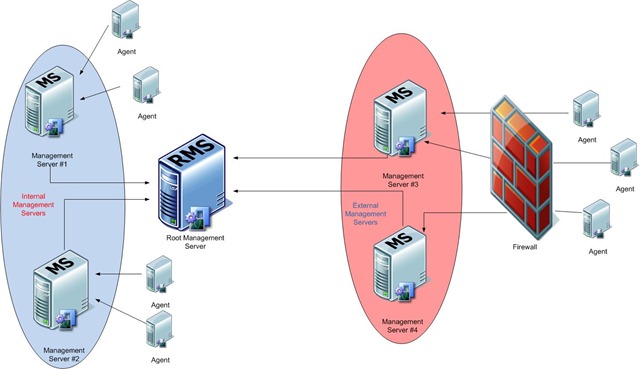
They currently have a single SCOM management group setup as the following:

Drawing2

  1. all SCOM management servers (including the root management server) are located on the same segment of the network.
  2. internal agents (from the same forest) are reporting to management server #1 and #2.
  3. External agents (from different forests) are reporting to management server #3 and #4 through firewall.
  4. SCOM is not integrated to AD – Therefore primary and failover management servers are not automatically assigned to agents.

I needed to achieve:

  1. agents are evenly distributed to the Internal and external management servers.
  2. all other management servers in the same group are assigned as failover management servers.
  3. For Example, there are 513 agent managed computers in internal network. They need to be evenly spread between management server #1 and #2 (so one management server will have 256 agents and the other will have 257 agents). All agents hanging off management server #1 will have #2 assigned as failover management server and vice versa.

I wrote this PowerShell script for this task. if you create a Windows scheduled task and run it on a regular basis, you’ll ensure all your SCOM agents are evenly assigned to a group of management servers and have correct settings for failover management servers.

The script does so by doing the following:

  1. Work out total number of agents that are currently hanging off the management servers specified in the script (line 33-37):image
  2. Work out which management servers are over average and which ones are below average
  3. Go through each one that’s over the average, move agents to another random management server until it reaches the average number.
  4. after each agent move, check the destination management server, make sure it is still under the average number, otherwise, remove it from the pool of under average management servers.
  5. Go through the remaining agents on each management server and make sure they are set to use all the other management servers as failover management servers.

Note: PowerShell Version 2 is required to run this script! This script can only run on the root management server. if you want to run it somewhere else, please modify line 15 of the script to have the correct FQDN of your RMS server.

mardi 7 septembre 2010

Lots Of Operations Manager Updates

Microsoft released lots of updates for Operations Manager over the last couple of weeks. There are lots of updates to management packs, too many for me to go posting them at this time of night. Have a look on the catalogue and you’ll see them. Or check your console if you’re using OpsMgr 2007 R2.

Most importantly is KB971541, Update Rollup for Operations Manager 2007 Service Pack 1.

“The Update Rollup for Operations Manager 2007 Service Pack 1 (SP1) combines previous hotfix releases for SP1 with additional fixes and support of SP1 roles on Windows 7 and Windows Server 2008 R2. This update also provides database role and SQL Server Reporting Services upgrade support from SQL Server 2005 to SQL Server 2008.

The Update Rollup includes updates for the following Operations Manager Roles:

  • Root Management Server, Management Server, Gateway Server
  • Operations Console
  • Operations Management Web Console Server
  • Agent
  • Audit Collection Server (ACS Server)
  • Reporting Server

The following tools and updates are provided within this update which may be specific to a scenario:

  • Support Tools folder – Contains SRSUpgradeTool.exe and SRSUpgradeHelper.msi (Enables upgrade of a SQL Server 2005 Reporting Server used by Operations Manager Reporting to SQL Server 2008 Reporting Server)
  • Gateway folder – Contains a MSI transform and script to update MOMGateway.MSI for successful installation on Windows Server 2008 R2
  • ManagementPacks folder – Contains an updated Microsoft.SystemCenter.DataWarehouse.mp which requires manual import

For a list of fixes and tools addressed by this update rollup, see KB971541.

This update is supported for application on System Center Operations Manager 2007 Service Pack 1 only.

Feature Summary

The System Center Operations Manager 2007 SP1 Rollup 1 contains:

  • All binary hotfixes released since Service Pack 1 release
  • Support for Windows 7 and Windows Server 2008 R2
  • Operational and DataWarehouse database support on Windows Server 2008 R2
  • Additional stability hotfixes”

Requirements

  • Supported Operating Systems: Windows 7; Windows Server 2003; Windows Server 2008; Windows Server 2008 R2; Windows Vista; Windows XP
  • System Center Operations Manager 2007 Service Pack 1

Instructions

This update must be applied to each computer that meets the following criteria:

  • Hosts a Microsoft Operations Manager Root Management Server
  • Hosts a Microsoft Operations Manager Management Server
  • Hosts a Microsoft Operations Manager Operations Console
  • Hosts a Microsoft Operations Manager Web Console Server
  • Hosts a Microsoft Operations Manager Reporting Server
  • Hosts a Microsoft Operations Manager Manually installed Agent
  • Hosts a Microsoft Operations Manager ACS Server

Before applying this update it is strongly recommended that Operations Manager databases, Management Server, Report Server and Web Console roles be backed up.

To extract the files contained in this update and installation of the update on the Operations Manager roles above:

  1. Copy the file – SystemCenterOperationsManager2007-SP1-KB971541-X86-X64-IA64-locale.MSI – To either a local folder or accessible network shared folder.
  2. Run the file – SystemCenterOperationsManager2007-SP1-KB971541-X86-X64-IA64-locale.MSI – locally on each applicable computer that meets the predefined criteria.
    You can run SystemCenterOperationsManager2007-SP1-KB971541-X86-X64-IA64-locale.MSI from either Windows Explorer or from a command prompt.
  3. Select the appropriate role to update from the Operations Manager 2007 Software Update dialog.

NOTE: To run this file on Windows Server 2008 you must run this file from a command prompt which was executed with the Run as Administrator option. Failure to execute this Windows installer file under an elevated command prompt will not allow display of the System Center Operations Manager 2007 Software Update dialog to allow installation of the hotfix”.

lundi 5 juillet 2010

DB Maintenance: Rebuild Index Task always fails on OperationsManagerDW [SCOM database]

Problem Description

=======================================

We encountered a situation where we were trying to execute a maintenance plan to rebuild the index of OperationsManagerDW database. However, the maintenance plan fails to complete.

In the Maintenance Plan log, the following paragraph was found:

Rebuild Index Task ()

Rebuild index on Local server connection

Databases that have a compatibility level of XX (SQL Server version XX.0) will be skipped.

Databases: All databases

Object: Tables and views

Original amount of free space

Task start: 2010-03-01T03:05:29.

Task end: 2010-03-01T03:08:48.

Failed:(-1073548784) Executing the query "ALTER INDEX [PK__EventSta__XXXXXXXXXXXXXXX] ON [E..." failed with the following error: "Cannot find index 'PK__EventSta__ XXXXXXXXXXXXXXX '.". Possible failure reasons: Problems with the query, "ResultSet" property not set correctly, parameters not set correctly, or connection not established correctly.

Additionally, the same error is encountered when you try to run a Rebuild Index script via SSMS

What’s happening here? Let’s see

What is causing this:

=======================================

§ To begin with, this was little strange as we verified that all indexes existed before started the maintenance plan

§ On further, probing we verified that, SCOM drops and recreates table “Event Stage” every minute

§ To verify, we generated T-SQL Script and copied the index alter script for problematic table

§ Also ran the script via SSMS and got same error

§ SELECT * from sys.objects where name like 'Event Stage%' gave us object id and creation date

§ Ran above SELECT again after a minute and now got a new name and creation date…..?

So here’s what is happening.

o When we run a rebuild index script, it first collect index names and then tries to rebuild them.

o In this specific case, it is getting an indexes name say PK__EventSta__XXXXXXXXXXXXXXX, however the table/index is getting dropped and recreated now with a different name.

o This is causing the above error.

§ To confirm if the table has been modified, we also verified same using SQL Standard Report “Schema Change History”

Then how can I Re-index OperationsManagerDW database to ensure good performance

===================================================================

§ With a little more re-search; we verified that it is NOT required to Re-index OperationsManagerDW database as Reindexing is already taking place against the OperationsManagerDW database for some of the key tables. The functionality is built into the product. For more details, on OperationsManagerDW Self-maintenance refer this post

§ What we need to ensure - is that any default DBA maintenance tasks are neither redundant nor conflicting with SCOM OperationsManagerDW built-in maintenance.

Steps to reproduce the issue:

=======================================

1. On OperationsManagerDW SQL database

2. Create a simple maintenance with re-indexing task

3. “Select Report Options” choose a log location

4. Save and execute the maintenance plan and allow this to fail.

5. Verify the error in logs

Hope this will help!

lundi 7 juin 2010

DNS 2008 External name resolution monitor is always in “critical” state in SCOM 2007 R2

My external name resolution monitor for my DNS 2008 MP was always coming up critical. See below:

image

The server health status would roll up to critical and consequently would cause AD alerts to come up:

image

The issue here is in the way that the actual monitor is performing the test because I can resolve external names. I tested this in my DNS server and clients both by using my DNS server with forwarders or with Root Hints.

Here is what the test is actually doing:

image

Now, from a Health Explorer perspective, here is the actual test:

image

image

So the DNS 2008 external name resolution monitor is performing an ns query on www.microsoft.com using my DNS server.

This will actually fail. Well, sort of… See below:

image

There was an output. So what’s the issue?

Kevin Holman (OpsMgr MVP) blogged about this issue some time ago. See here:

http://blogs.technet.com/kevinholman/archive/2009/02/24/dns-mp-external-resolution-monitor-always-in-a-critical-state.aspx

Kevin was correct in his post that the actual issue with this specific monitor test is that we are attempting to perform an ns query against a host (www.microsoft.com and not a zone: microsoft.com).

If we modify the test as follows, the output returns the list of name servers:

image

That’s great. We get the list of name servers. What’s interesting here, is this is the expected output.

How would we have known that from the test? Here is a more important question: Why are we even using an ns query when the monitor is performing test lookups against external addresses?

More on that, for now let’s just correct the monitor test so that our environment reports correctly.

OK, so now we know how to modify the monitor to work correctly with an ns test. We should override this monitor for all objects of class: DNS server since the test itself is flawed and not the monitor per se on any particular DNS Server. Make sure to save your override in a relevant unsealed management pack if you need to get at it easily later.

image

It may take up to 5 minutes for your alert to clear once you have made the override.

image

OK, so the alert closed itself since the default monitor behavior was configured to do so.

image

The Computer health status is also Healthy now.

image

We can also see that the name resolution test is fixed as well. All is good.

Now, why did the ns query not liking the output… We did get an output from the original test remember?

Well, I found that out by digging. This post below confirms it:

http://www.gasmi.net/nslman.html

image

OK so we sort of have the answer for what was wrong with the test. That still does not really answer what was wrong with the output that we received…

When a monitor is configured, a health status is equated to something and it is still unclear what constitutes “unhealthy” for this test.

I will expand on that in a separate post as I actually discover the answer.

Now for the other question:

Why are we even using an ns query when the monitor is performing test lookups against external addresses?

I think that the type of test being performed is not what we are looking for.

A name resolution given a host name (ex. www.microsoft.com) would resolve to an IP address by checking a host (A) record on some DNS server. See below:

image

So given the name of the monitor “External Address Resolution” we should be performing a query against “A” or host records. Let’s try that.

image

OK, the query seems to work as expected.

To make the change quickly, I’ll override the monitor properties for all objects of class: DNS Server using the Closed Alerts view that I created in my environment.

image

image

What I did was to put the Host parameter back as www.microsoft.com but to change the Query Type parameter from ns to A.

My Health status is Healthy and I have no new Active Alerts!


Thanks to http://myitforum.com/cs2/blogs/bbird/archive/2010/03/17/dns-2008-external-name-resolution-monitor-is-always-in-critical-state-in-scom-2007-r2.aspx


vendredi 19 février 2010

Search SCOM Database for MOMUIGeneratedRule entries

If you are getting MOMUIGeneratedRule descriptions in your reports here is an SQL Query that will list all of them and their descriptions.

select distinct
r.RuleID,
r.RuleName,
lt.ElementName,
lt.LTValue,
r.ManagementPackId,
mp.MPFriendlyName
from rules r
join LocalizedText lt on lt.LTStringID = r.RuleID
join ManagementPack mp on mp.ManagementPackID = r.ManagementPackID
where rulename like ‘MOMUIGeneratedRule%’

mercredi 17 février 2010

importer le certificat du server et le certificat de management manuellement

il faut créer sous
HKEY_LOCAL_MACHINE\SOFTWARE\Microsoft\Microsoft Operations Manager\3.0\Machine Settings
La clé binaire ChannelCertificateSerialNumber qui a pour valeur le serial du certificat de la machine MAIS encodé à l'envers !!!

Ex : certificat : a4 52 36 il faut encoder 36 52 a4.

vendredi 6 novembre 2009

how to remove Management Pack in Powershell

Here is the script:

$mp = get-managementpack |

where-object {$_.Name -eq ‘XXXXXXXX’}

uninstall-managementpack -managementpack $mp

jeudi 5 novembre 2009

Does your OpsDB keep growing? Is your localizedtext table using all the space?

This post is about an issue in OpsMgr SP1 AND R2 – where the localizedtext table in the database may fill and consume large amounts of space.

OpsMgr 2007 no longer has a hard database limit of 30GB like MOM 2005 did. For this reason, most OpsMgr administrators don't watch this very closely anymore, or freak out when it gets big.

However - it must be noted... console and operational performance are still impacted when this DB gets big. You really should keep an eye on it and try to keep it as small as possible. In general, I recommend only keep 2 days of operational data (Database Grooming global setting) from the default of 7 days, until everything is tuned.

One thing I have noticed at several locations, is that there are a couple tables that often grow quite large... depending on the agent count and what management packs are installed. These are LocalizedText and PublisherMessages. This is cause by management packs, that create a large amount of events, from script. I have seen this mostly in environments that have funky converted MOM 2005 MP's what run a lot of backwards-compatibility scripts, or in large Exchange 2007 and SCCM deployments. Like I said - this won't affect all customers... just those with specific management packs that expose this. What happens, is each event writes additional data to these tables, and they are not groomed or pruned.... so they keep growing. Over time, the impact is, that your DB might keep filling and run of of disk space, or your performance might be impacted when you use a view that queries LocalizedText.

To know if you are impacted - I would run the following query against your OpsDB:

Simple query to display large tables, to determine what is taking up space in the database:

SELECT so.name,
8 * Sum(CASE WHEN si.indid IN (0, 1) THEN si.reserved END) AS data_kb,
Coalesce(8 * Sum(CASE WHEN si.indid NOT IN (0, 1, 255) THEN si.reserved END), 0) AS index_kb,
Coalesce(8 * Sum(CASE WHEN si.indid IN (255) THEN si.reserved END), 0) AS blob_kb
FROM dbo.sysobjects AS so JOIN dbo.sysindexes AS si ON (si.id = so.id)
WHERE 'U' = so.type GROUP BY so.name ORDER BY data_kb DESC

Normally, in most typical environments with typical MP's, we'd expect perf data to be the largest tables, followed by event, state, and alert. If localizedtext is your largest table, this is impacting you. You can run the following query:

select count(*) from localizedtext

Generally, if this table is your largest in the database, and over a million rows, you are impacted. The impact is low... however.... mostly just hogging space in the DB, and possibly impacting console performance.

I am attaching TWO scripts below, which clean up these tables. That being said - this script is NOT supported by Microsoft, as it has not been thoroughly tested. It is being provided "AS IS" with no warranties, and confers no rights. Use of included script samples are subject to the terms specified in the Terms of Use

****UPDATED for R2:

There are now TWO scripts.

If you are on SP1 – you run both on a regular basis

If you are on R2 – you only need to run the first one ONCE, and second one on a regular basis.

This core issue was fixed in R2, however – since R2 released we found another type of data that gets left in the LocalizedText table, so this second script was developed.

Ok.... so these scripts will require a LARGE amount of TempDB space - make sure your TempDB is on a volume with lots of space to grow... if not - add an additional TempDB file on another volume just in case. Make sure you take a good SQL backup of your OpsDB as well. The script in general, takes about 20 minutes per million rows, depending on the hardware capabilities of the SQL server. I have seen it take 10 minutes per million rows on a fast server.

Now – when I say LOTS of space for your tempDB – I mean it. LOTS. I believe it is the tempDB log that needs most of the space. Just make sure you have at least as much tempDB space as the size of your LocalizedText table.

When the script is done, you wont recognize the space freed up immediately. You need to run a - DBCC DBREINDEX ('localizedtext') - to reindex the table, and show the newly freed space. It would likely be a good idea to reindex the entire database at this point, which you can do by running the following:

Reindex the database:

USE OperationsManager
go
SET ANSI_NULLS ON
SET ANSI_PADDING ON
SET ANSI_WARNINGS ON
SET ARITHABORT ON
SET CONCAT_NULL_YIELDS_NULL ON
SET QUOTED_IDENTIFIER ON
SET NUMERIC_ROUNDABORT OFF
EXEC SP_MSForEachTable "Print 'Reindexing '+'?' DBCC DBREINDEX ('?')"

If you first want to troubleshoot, and try and determine what is consuming your tables... or which MP's are generating the most noise in this table.... you can run the following (they might take a LONG time to complete - depending on how big your tables are:

Most common events:

select messageid, ltvalue, count(*) as Count from publishermessages with(nolock)
inner join localizedtext with(nolock)
on messagestringId = localizedtext.ltstringid
group by messageid, ltvalue
order by Count DESC

LT insertions per day/month:

SELECT
DATEPART(mm,timeadded) AS 'MONTH',
DATEPART(dd,timeadded) AS 'DAY',
count(*)
from localizedtext with(nolock)
group by
DATEPART(mm,timeadded),
DATEPART(dd,timeadded)
order by
DATEPART(mm,timeadded),
DATEPART(dd,timeadded)

lundi 26 octobre 2009

Erreur WMI suite à l’installation du Management pack DNS 2003

Les erreurs WMI sont de 3 types :

Object enumeration failed Query: 'Select Name, Shutdown, Paused from MicrosoftDNS_Zone' HRESULT: 0x80041001
Details: Generic failure One or more workflows were affected by this.
Workflow name: Microsoft.Windows.DNSServer.2003.Monitor.ZoneRunning Instance name: 0.209.126.in-addr.arpa
(XXXXXX) Instance ID: {B3E4728D-3072-03EC-99AF-83AE59E55042} Management group: GMTLAB


OU

Object enumeration failed Query: 'Select EventLogLevel from MicrosoftDNS_Server' HRESULT: 0x80041001 Details: Generic failure
One or more workflows were affected by this. Workflow name: Microsoft.Windows.DNSServer.2003.Monitor.ServerLoggingLevel
Instance name: XXXXXX Instance ID: {1FA3B763-DE48-CE5A-CDEB-1840D0E2502D} Management group: GMTLAB

OU

The process started at 18:42:39 failed to create System.Discovery.Data. Errors found in
output: C:\Program Files\System Center Operations Manager 2007\Health Service State\Monitoring Host Temporary Files 3\51181\DNS2003ComponentDiscovery.vbs(123, 9)
SWbemServicesEx: Generic failure Command executed: "C:\WINDOWS\system32\cscript.exe" /nologo "DNS2003ComponentDiscovery.vbs" {C984657D-0255-F11B-2C76-1542793A684D}
{D2393B1D-D296-E027-BF61-D46056685FCD} XXXXXX true true true "" false 700 1 Working
Directory: C:\Program Files\System Center Operations Manager 2007\Health Service State\Monitoring Host Temporary Files 3\51181\
One or more workflows were affected by this. Workflow name: Microsoft.Windows.DNSServer.2003.Discovery.Components
Instance name: XXXXX Instance ID: {D2393B1D-D296-E027-BF61-D46056685FCD} Management group: GMTLAB


Actions : Sur les serveurs DNS recompiler la base des objets WMI, en ligne de commande :

CD %windir%\system32\wbem
mofcomp dnsprov.mof


vendredi 16 octobre 2009

Maximum number of asynchronous responses has been reached

Some more Command Notification Tricks and Tips

Here are a couple a tidbits on command notification with Operations Manager 2007 I’ve seen people asking about recently.

1) I’m getting Alerts “Script or Executable was Dropped” when command notifications execute. How do I prevent it?

What you’ll typically see in the Alert description is the following:

“The process could not be created because the maximum number of asynchronous responses (5) has been reached, and it will be dropped. Command executed: ………”

What is happening here is that notification command execution in response to alerts is attempting to fire more than 5 (default) notification command processes asynchronously. By default the number of command processes executed defaults to 5 to protect the RMS from alert storms potentially overwelming the system with runaway processes.

The default of 5 async notification processes allowed can be overridden. The following solution comes with a warning “Increasing the default number of concurrent command notification processes could cause RMS performance issues”. For those running somewhat lengthy batch files, scripts, executables via command notification the following may allow such to scale out if your RMS has the horsepower to cope:)

It’s worth noting that it is the RMS that runs notifications. The follow registry modification on the RMS and subsequent stop and restart of the HealthService service will trigger the new maximum responses allowed:

One the RMS use RegEdit to navigate to HKEY_LOCAL_MACHINE\Software\Microsoft\Microsoft Operations Manager\3.0\Modules

Under this key create a new subkey called Global

Under the new Global subkey create another subkey called Command Executer

Under the Command Executer subkey create a new DWORD value AsyncProcessLimit

For the value of AsyncProcessLimit you can set a minimum of 0x00000001 (Strongly not recommended) and a maximum of 0x00000064 (100) (again definitely not recommended).

So, if you wanted to increase the number of async command notifications from 5 to 10 the key would look like:

HKEY_LOCAL_MACHINE\Software\Microsoft\Microsoft Operations Manager\3.0\Modules\Global\Command Executer\AsyncProcessLimit REG_DWORD:0x0000000a

mardi 22 septembre 2009

Health Service Store: The version store for this instance has reached its maximum size of xx Mb

SYMPTOMS


In a Microsoft System Center Operations Manager 2007 environment, one or more management servers that host the following roles, together with those management servers' managed devices, may appear dimmed or grayed out in the Operations Console:
  • Root Management Server
  • Management Server
  • Gateway Server
  • Agent
Additionally, an event that resembles the following is logged in the Operations Manager log on these computers:

Event Type: Error
Event Source: ESE
Event Category: Transaction Manager
Event ID: 623
Description: HealthService () The version store for instance ("") has reached its maximum size of Mb. It is likely that a long-running transaction is preventing cleanup of the version store and causing it to build up in size. Updates will be rejected until the long-running transaction has been completely committed or rolled back. Possible long-running transaction:
SessionId:
Session-context:
Session-context ThreadId: .
Cleanup:


RESOLUTION
Important This section, method, or task contains steps that tell you how to modi...

Important This section, method, or task contains steps that tell you how to modify the registry. However, serious problems might occur if you modify the registry incorrectly. Therefore, make sure that you follow these steps carefully. For added protection, back up the registry before you modify it. Then, you can restore the registry if a problem occurs. For more information about how to back up and restore the registry, click the following article number to view the article in the Microsoft Knowledge Base:
322756 (http://support.microsoft.com/kb/322756/ ) How to back up and restore the registry in Windows
To resolve the problem, apply the following registry setting on the computers that host the affected roles:
Subkey: HKEY_LOCAL_MACHINE\System\CurrentControlSet\Services\HealthService\Parameters
Type: REG_DWORD
Name: Persistence Version Store Maximum
Value: Number of 16-kilobyte pages
Base: Decimal
The default size of the version store depends on the Operations Manager role and is defined as the number of 16-kilobyte pages to allocate in memory. The default values are as follows:
  • Agent (workstation operating systems): 640 (10 megabytes)
  • Agent (server operating systems): 1920 (30 megabytes)
  • Management Server: 5120 (80 megabytes)
If you experience this problem, we recommend that you set the version store size to double its default size. For example, if you set the version store size on a computer that hosts a Management Server role, set the registry value to 10240 (decimal).

After you apply the registry change, restart the HealthService service.

Notes
  • A larger version store size requires additional memory to be allocated.
  • If the HealthService is running lots of workflows, this registry value must be set even larger than the recommended size.

jeudi 17 septembre 2009

Certificate Authentication – Ops Mgr 2007 ACS


The steps below assume that SCOM monitoring communication has been established via certificate authentication. If not, reference Pete Zerger’s document on Gateway servers and PKI here.


1. At the ACS collector server, stop the AdtServer service and then run AdtServer –c from the command prompt and select the certificate already requested and in use for agent to management/gateway server communication. Restart AdtServer.


2. At the workgroup/untrusted computer use the certificates snap-in to export the agent communication certificate in .CER format.


3. Within AD Users and Computers on the domain where the Collector resides, create a Computer account for the agent in the workgroup/untrusted domain. Use the Name Mapping option to import the certificate from the above step.
a. After creating the account, select View -> Advanced Features within Active Directory Users & Computers.
b. Right-click the computer account you created for the untrusted computer and select Name Mappings.
c. Add the X-509 certificate you exported from the untrusted computer in step 2.


4. In the Operations console run the Task to enable auditing on the agent.


5. On the untrusted computer, stop the AdtAgent service (net stop adtagent.exe)


6. On the untrusted computer run AdtAgent –c and select the same certificate used for agent to management server authentication. Restart the AdtAgent service


7. Runt the query SELECT * FROM dbo.dtMachine against your ACS Collector
database to ensure that the untrusted computer has been added.